
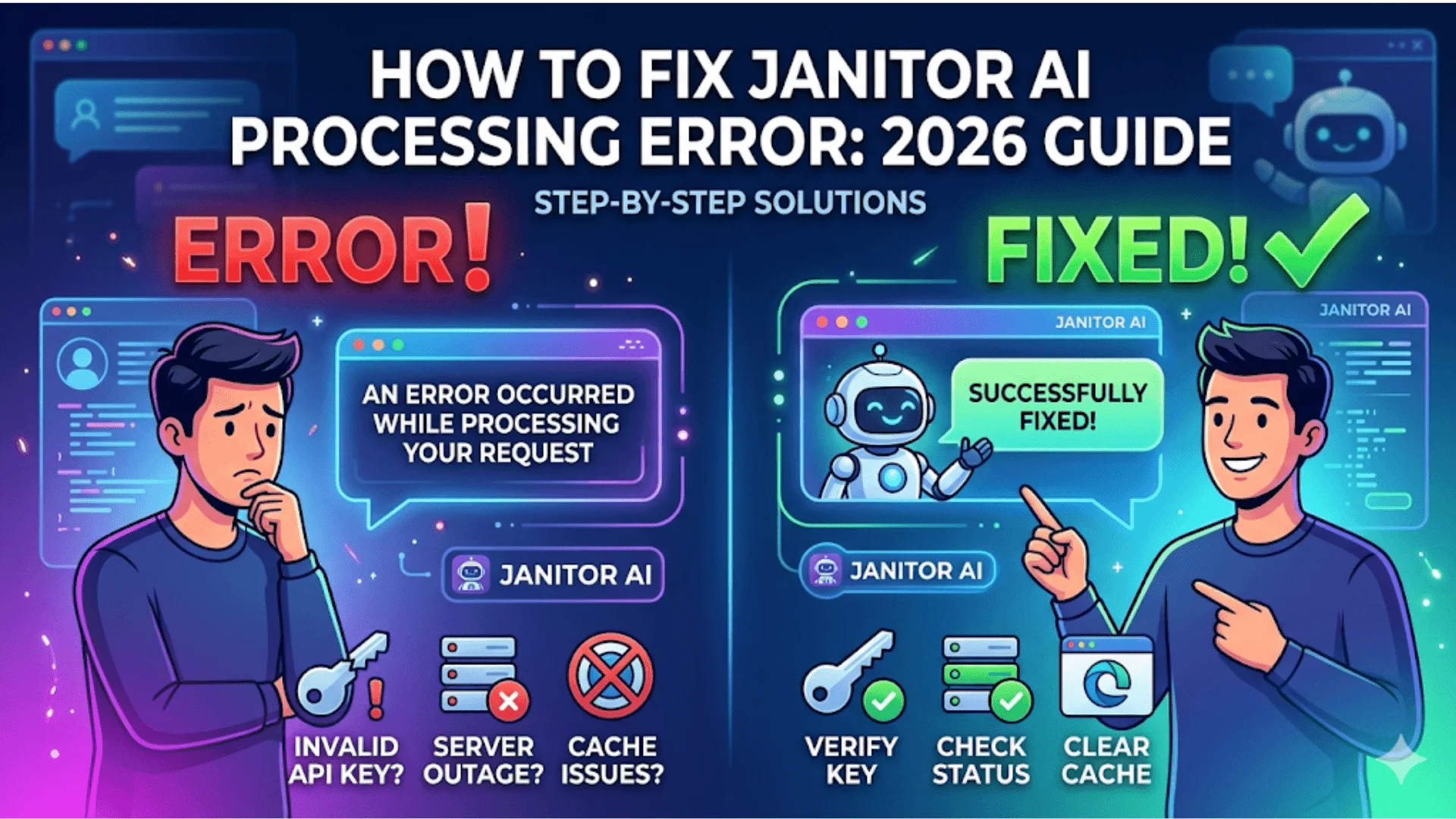
How To Fix Janitor AI Processing Error 2026 Guide
How To Fix Janitor AI Processing Error
Fix Janitor AI Processing Error: If you opened Janitor AI today and got slapped with “An error occurred while processing your request,” you are not alone. This error has been hitting users across Pakistan and globally, and it is causing real frustration because there is no obvious reason shown on screen. Most people just refresh the page and hope for the best, but that rarely works.
The good news is that this error almost always has a fixable cause. Whether it is a server-side hiccup on Janitor AI’s end, an expired API key, or a browser cache issue, each problem has a specific solution. This guide walks you through every known fix in order, so you can get back to your conversations fast.
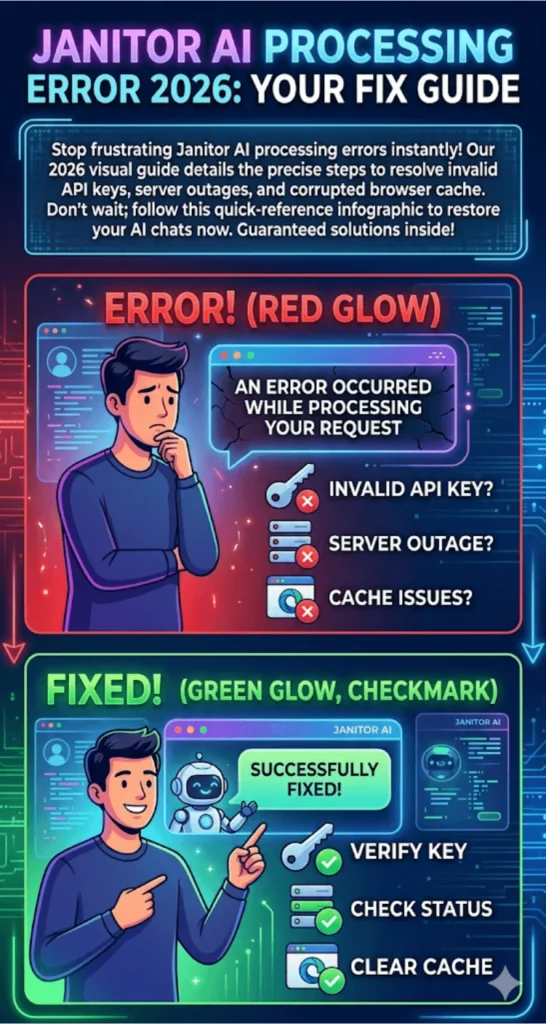
Given how much Janitor AI has grown in 2026, especially among users who connect it to custom OpenAI or KoboldAI backends, this particular error has become one of the most searched issues related to the platform. Here is exactly what is going on and what you need to do.
Best Free AI Tools in Pakistan 2026 – Urdu Supported & Student Friendly
Table Quick Information
| Detail | Info |
| Platform | Janitor AI (janitorai.com) |
| Error type | Request processing failure |
| Main causes | Invalid API key, server outage, browser cache, account issue |
| Fix time | 2 to 10 minutes (most cases) |
| Affects | All devices — desktop, mobile, tablet |
| Status checker | downdetector.com / janitorai Discord |
DeepSeek vs ChatGPT In 2026 Which AI Is Better For Pakistani Students?
What Triggers the Processing Error on Janitor AI
Janitor AI is not a standalone AI. It relies on external language model APIs, either OpenAI’s GPT models or KoboldAI, to generate responses. When any link in that chain breaks, the platform cannot complete your request and throws this generic error message. It is essentially a catch-all message for “something went wrong between the platform and the AI backend.”
The most frequent trigger is an API key that has either expired, been revoked, or run out of credits. OpenAI accounts have usage limits, and once you hit the free-tier cap or your paid credits are exhausted, every request will fail. This is especially common for users who set up their API key weeks ago and have been using the platform heavily since then.
Other Common Causes
- Janitor AI’s own servers are overloaded or under maintenance, especially during peak hours in North America and Europe.
- Your browser has a corrupted session cookie or outdated cached data from a previous version of the site.
- The selected character on Janitor AI has a broken or misconfigured prompt setup on the creator’s end.
- Your internet connection dropped briefly during the request and the session timed out.
- A browser extension such as an ad blocker or privacy shield is intercepting the API call.
Quantum AI Pakistan 2026 – What Is It & How Can You Register?
Step-by-Step Fixes for Janitor AI Request Error
Work through these steps in order. Most users find the fix within the first three steps, so do not skip ahead without trying each one first. The order is based on which causes are most common in 2026.
Step 1: Check Janitor AI Server Status
Before changing any settings, confirm whether the problem is on your side or theirs. Visit Downdetector and search for Janitor AI, or check the official Janitor AI Discord server where the team posts real-time status updates. If there is an outage, no amount of local troubleshooting will help. Wait 20 to 30 minutes and try again once the service recovers.
Step 2: Verify and Re-enter Your API Key
Go to your Janitor AI profile settings and look for the API configuration section. Delete your current API key and paste it again fresh from your OpenAI account dashboard at platform.openai.com. Make sure there are no extra spaces before or after the key. While you are there, check your OpenAI usage dashboard to confirm you still have available credits. A depleted balance is one of the top reasons this error appears.
- Log into platform.openai.com and go to Billing, then Usage.
- If credits are exhausted, add a new payment method or top up your balance.
- Copy the API key again from the API Keys section to make sure it is the active key.
- Return to Janitor AI settings, remove the old key, and paste the newly copied one.
- Save the settings and try starting a new conversation to test.
Step 3: Clear Browser Cache and Cookies
Cached data from an older version of Janitor AI can cause conflicts with how the platform handles requests. On Chrome, press Ctrl + Shift + Delete, select “All time” as the range, check cached images and files plus cookies, and clear the data. Then close the browser completely, reopen it, and log back into Janitor AI. This single step fixes the error for a large number of users.
Step 4: Switch Browsers or Use Incognito Mode
Open an incognito or private window in Chrome, Firefox, or Edge. This disables all browser extensions automatically and starts a clean session without any cached data. If the error disappears in incognito mode, a browser extension is the culprit. Disable extensions one at a time in your regular browser to identify which one is blocking the request. Ad blockers and VPN extensions are usually the first suspects.
Step 5: Try a Different Character or Create a New Chat
Some characters on Janitor AI have broken system prompts or configurations that cause the platform to fail before it even sends a request to the AI backend. Switch to a different character and try having a conversation. If that works, the issue is with the specific character’s setup, not your account or API key. You can report broken characters through the platform’s feedback option.
Step 6: Log Out and Log Back In
An expired authentication session can sometimes cause the platform to fail silently. Log out of Janitor AI completely, clear cookies one more time, and then sign back in using your credentials or Google account. This refreshes your session token and often resolves errors that appeared after a long idle period or after a platform update.
Additional Fixes to Try
- Switch from Wi-Fi to mobile data or vice versa to rule out a local network issue.
- Disable your VPN if you are using one, as some server regions are restricted by Janitor AI’s backend.
- Check if your account has any flags or warnings in the notification section that might indicate a temporary restriction.
- Try accessing Janitor AI from a different device to confirm the issue is account-wide or device-specific.
- If using KoboldAI, confirm your KoboldAI instance is running and the endpoint URL in settings is correctly entered.
DeepSeek Student Discount 2026 How To Get DeepSeek Pro For Free
Why This Error Appears More Often During Certain Hours
Janitor AI’s infrastructure handles a massive volume of simultaneous requests, and load spikes happen predictably during evening hours in Western time zones (which is early morning in Pakistan). During these periods, the platform may throttle requests or return generic errors even when your API key and settings are perfectly fine. Pakistani users who use the platform between 6 AM and 10 AM PKT are essentially hitting Janitor AI during its busiest window.
OpenAI also enforces rate limits based on your account tier. Free-tier accounts have strict per-minute and per-day request caps. If you are sending messages quickly across multiple chats, you can hit these limits temporarily and get this error. Upgrading to a paid OpenAI API plan significantly reduces the frequency of this issue.
DeepSeek Not Working? 10 Common Errors & How to Fix Them Fast
How to Prevent the Processing Error From Coming Back
- Set a monthly reminder to check your OpenAI credit balance and top up before it runs out.
- Keep your browser updated to the latest version since outdated browsers can have SSL and fetch issues.
- Avoid using Janitor AI during peak server hours if your use is non-urgent (roughly 8 PM to 12 AM EST).
- Regularly clear browser cookies every two weeks to prevent session corruption.
- Join the Janitor AI Discord community to get notified about planned maintenance and outages before they affect you.
How To Fix Janitor AI Proxy Error 500 – Complete Troubleshooting Guide 2026
Frequently Asked Questions
Why does Janitor AI keep saying “error occurred while processing your request” even after refreshing?
Refreshing does not fix the root cause. You need to check your API key validity, clear your browser cache, and confirm the platform’s servers are online.
Can I use Janitor AI without an API key?
Janitor AI requires either an OpenAI API key or a KoboldAI connection to generate responses; without one, conversations cannot be processed.
Is Janitor AI down right now?
Check Downdetector.com or the Janitor AI Discord server for real-time outage reports and official status updates.
Does this error mean my Janitor AI account is banned?
Not necessarily. This error is most commonly a technical issue related to API keys or server load, not an account ban, which would show a different message.
How do I fix the Janitor AI processing error on mobile?
On mobile, clear your browser’s cache and cookies through your browser settings, re-enter your API key, and try switching between Wi-Fi and mobile data.
Why does the error only happen with certain characters on Janitor AI?
Some characters have misconfigured prompts or broken settings created by their authors, which cause the platform’s request to fail before reaching the AI model.
What is the fastest fix for Janitor AI request error?
The fastest fix is opening an incognito browser window, logging into Janitor AI fresh, and testing a conversation to see if the error is browser or session-related.
DeepSeek Free for Students in Pakistan 2026: Full Step-by-Step Guide
Conclusion
The “an error occurred while processing your request” message on Janitor AI looks alarming but is almost always fixable within a few minutes. Checking your API key first is the smartest move because it is the root cause in the majority of reported cases. After that, clearing your browser cache and testing in incognito mode covers most of what remains. Server-side outages do happen, especially during peak Western evening hours, and patience is sometimes the only fix.
What matters is knowing the difference between a local problem and a platform-wide issue, which is why checking Downdetector or the Janitor AI Discord first saves a lot of unnecessary troubleshooting time. As Janitor AI keeps growing through 2026, API management and session hygiene will remain the two habits that separate users who rarely see this error from those who see it constantly.
DeepSeek AI Meaning in Urdu – Artificial Intelligence Ka Naya Daur